Posted in Automation Testing

Page Object Model with Page Factory

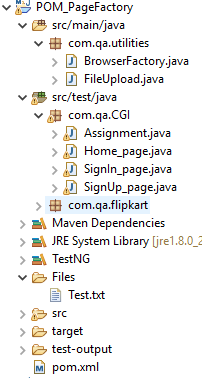
Sample structure of POM Framework

What is POM?
Page factory model is a design pattern to organize test cases and web elements locators separately
All element locators are stored in a class file separately from test cases

What is page class?
It contains element locators
it contains methods related to that page functionality

What is Test case class?
It contains the actual test cases.
It calls the methods from its respective page classes.

What is page factory?
Page factory is a in built class in selenium for maintaining object repository.
iniElement() is used to look up elements in page class and to initialize.
It allows storing elements in cache memory using cachelookup.

POM with out Page factory uses BY, whereas POM with page factory uses FindBy to locate elements.

CacheLookup, is useful to speed up the execution process.
It stores the locators from cache memory and directly use to find the elements. It does not search the locators in DOM during run time.
It should only be used if locators are static and do not change else it will throw stale element error.

Environment setup:
POM.XML
– WebDriver Manager
– TestNG
– Selenium webdriver

<dependencies>
		<!-- https://mvnrepository.com/artifact/org.seleniumhq.selenium/selenium-java -->
		<dependency>
			<groupId>org.seleniumhq.selenium</groupId>
			<artifactId>selenium-java</artifactId>
			<version>3.141.59</version>
		</dependency>
		<dependency>
			<groupId>io.github.bonigarcia</groupId>
			<artifactId>webdrivermanager</artifactId>
			<version>3.6.1</version>
			<scope>test</scope>
		</dependency>
		<dependency>
			<groupId>org.testng</groupId>
			<artifactId>testng</artifactId>
			<version>6.14.3</version>
			<scope>test</scope>
		</dependency>
	</dependencies>

Step1: Create Page class
Ex: Home_page.java

import java.util.List;

import org.openqa.selenium.WebDriver;
import org.openqa.selenium.WebElement;
import org.openqa.selenium.support.FindBy;
import org.openqa.selenium.support.How;
import org.openqa.selenium.support.PageFactory;

public class Home_page {
	
	WebDriver driver;
	public Home_page(WebDriver Ldriver) {
		this.driver=Ldriver;
	}
	
	@FindBy(how = How.CSS, using = "#navbar > div.navbar-nav.mr-auto > a:nth-child(2)")
	public WebElement address_menu;
	
	@FindBy(how = How.XPATH, using = "//a[text()='New Address']")
	public WebElement NewAdd_link;
	
	@FindBy(how = How.NAME, using = "address[first_name]")
	public WebElement firstName;
	
	@FindBy(how = How.NAME, using = "address[last_name]")
	public WebElement lastName;
	
	@FindBy(how = How.NAME, using = "address[address1]")
	public WebElement address1;
	
	@FindBy(how = How.NAME, using = "address[city]")
	public WebElement city;
	
	@FindBy(how = How.NAME, using = "address[zip_code]")
	public WebElement zip;
	
	@FindBy(how = How.ID, using = "address_state")
	public WebElement stateList;
	
	@FindBy(how = How.ID, using = "address_country_canada")
	public WebElement country_canada;
	
	@FindBy(how = How.ID, using = "address_birthday")
	public WebElement birthday;
	
	@FindBy(how = How.ID, using = "address_picture")
	public WebElement picture;
	
	@FindBy(how = How.NAME, using = "commit")
	public WebElement createAddress;
	
}

2- Create Test class
Ex: TestHomePage.java

import java.util.List;
import java.util.concurrent.TimeUnit;

import org.openqa.selenium.Alert;
import org.openqa.selenium.By;
import org.openqa.selenium.WebDriver;
import org.openqa.selenium.WebElement;
import org.openqa.selenium.chrome.ChromeDriver;
import org.openqa.selenium.support.PageFactory;
import org.openqa.selenium.support.ui.Select;
import org.testng.annotations.AfterClass;
import org.testng.annotations.BeforeClass;
import org.testng.annotations.Test;

import io.github.bonigarcia.wdm.WebDriverManager;

public class Assignment {

	private static WebDriver driver;

	@BeforeClass
	public static void setupClass() {
		WebDriverManager.chromedriver().setup();
		driver = new ChromeDriver();
	}

	@Test
	public void TC01() {
		String appURL = "http://a.testaddressbook.com/sign_up";

		// Navigating to the Application URL
		driver.get(appURL);
		driver.manage().timeouts().implicitlyWait(20, TimeUnit.SECONDS);
		SignUp_page signupPage = PageFactory.initElements(driver, SignUp_page.class);

		signupPage.email_txt.sendKeys("Your_Name@abc.com");
		signupPage.password_txt.sendKeys("admin");
	}

	@Test
	public void TC02() {
		String appURL = "http://a.testaddressbook.com/sign_in";

		// Navigating to the Application URL
		driver.get(appURL);
		driver.manage().timeouts().implicitlyWait(20, TimeUnit.SECONDS);
		SignIn_page signinPage = PageFactory.initElements(driver, SignIn_page.class);
//		Home_page homePage = PageFactory.initElements(driver, Home_page.class);
		Home_page homePage = new Home_page(driver);
		PageFactory.initElements(driver, Home_page.class);

		signinPage.email_txt.sendKeys("test@xyz.com");
		signinPage.password_txt.sendKeys("test");
		signinPage.signIn_btn.click();

		homePage.address_menu.click();
		homePage.NewAdd_link.click();
		String firstname = "Test Name1";
		homePage.firstName.sendKeys(firstname);
		homePage.lastName.sendKeys("Test Name");
		homePage.address1.sendKeys("add1");
		homePage.city.sendKeys("City");
		homePage.zip.sendKeys("45454");
		Select dropdown = new Select(homePage.stateList);
		dropdown.selectByVisibleText("Idaho");
		homePage.country_canada.click();
		homePage.birthday.sendKeys("30-04-1987");
		homePage.picture.sendKeys("C:\Users\Wildwolf\eclipse-workspace\POM_PageFactory\Files\Test.txt");
		homePage.createAddress.click();

		homePage.address_menu.click();
		driver.findElement(By.xpath("//tbody/tr[contains(.,'" + firstname + "')]/td/a[text()='Destroy']")).click();
		Alert alert = driver.switchTo().alert();
		alert.accept();

	}

	// @AfterClass
	public void teardown() {
		if (driver != null) {
			driver.quit();
		}
	}
}

3- Create a generic class for browser driver
This will take browser name , URL and return the driver

import org.openqa.selenium.WebDriver;
import org.openqa.selenium.chrome.ChromeDriver;
import org.openqa.selenium.firefox.FirefoxDriver;

public class BrowserFactory {

	/**
	 * This class is to initialize and setup browser before execution
	 */
	
	static WebDriver driver;
	
	public static WebDriver startBrowser(String browser,String appURL) {
		
		if(browser.equalsIgnoreCase("chrome")) {
			driver=new ChromeDriver();
			
		}
		else if(browser.equalsIgnoreCase("firefox")) {
			driver=new FirefoxDriver();
		}
		else {
			System.out.println("Invalid browser name!");
		}
		
		driver.manage().window().maximize();
		driver.get(appURL);
		
		return driver;
	}
}

Posted in Automation Testing

WebDriverManager : No more driver.exe in Selenium

WebDriverManager allows to automate the management of the binary drivers (e.g. chromedriver, geckodriver, etc.) required by Selenium WebDriver.

If you use Selenium WebDriver, you will know that in order to use some browsers such as Chrome, Firefox, Opera, PhantomJS, Microsoft Edge, or Internet Explorer, first you need to download a binary file which allows WebDriver to handle browsers. In Java, the path to this binary must be set as JVM properties, as follows:

System.setProperty("webdriver.chrome.driver", "/path/to/binary/chromedriver");
System.setProperty("webdriver.gecko.driver", "/path/to/binary/geckodriver");
System.setProperty("webdriver.opera.driver", "/path/to/binary/operadriver");
System.setProperty("phantomjs.binary.path", "/path/to/binary/phantomjs");
System.setProperty("webdriver.edge.driver", "C:/path/to/binary/msedgedriver.exe");
System.setProperty("webdriver.ie.driver", "C:/path/to/binary/IEDriverServer.exe");


This is quite annoying since it forces you to link directly this binary file into your source code. In addition, you have to check manually when new versions of the binaries are released. WebDriverManager comes to the rescue, performing in an automated way all this dirty job for you. WebDriverManager can be used in 3 different ways:


This is quite annoying since it forces you to link directly this binary file into your source code. In addition, you have to check manually when new versions of the binaries are released. WebDriverManager comes to the rescue, performing in an automated way all this dirty job for you. WebDriverManager can be used in 3 different ways:

WebDriverManager as Java dependency

In order to use WebDriverManager from tests in a Maven project, you need to add the following dependency in your pom.xml (Java 8 or upper required):

<dependency>
    <groupId>io.github.bonigarcia</groupId>
    <artifactId>webdrivermanager</artifactId>
    <version>3.6.1</version>
    <scope>test</scope>
</dependency>

Example:

public class ChromeTest {
private WebDriver driver;

@BeforeClass
public static void setupClass() {
    WebDriverManager.chromedriver().setup();
}

@Before
public void setupTest() {
    driver = new ChromeDriver();
}

@After
public void teardown() {
    if (driver != null) {
        driver.quit();
    }
}

@Test
public void test() {
    // Your test code here
}
}

Source: https://github.com/bonigarcia/webdrivermanager/

Posted in Automation Testing

Git and Github

What is GIT?
Git is an open-source version control system that was started by Linus Trovalds—the same person who created Linux. Git is similar to other version control systems—Subversion, CVS, and Mercurial to name a few.

What is Github?
GitHub, a subsidiary of Microsoft, is an American web-based hosting service for version control using Git.
The social networking aspect of GitHub is probably its most powerful feature, allowing projects to grow more than just about any of the other features offered. Each user on GitHub has their own profile that acts like a resume of sorts, showing your past work and contributions to other projects via pull requests.

Git Tutorial – Operations & Commands
Some of the basic operations in Git are:

  • Initialize
  • Add
  • Commit
  • Pull
  • Push

Some advanced Git operations are:

  • Branching
  • Merging
  • Rebasing

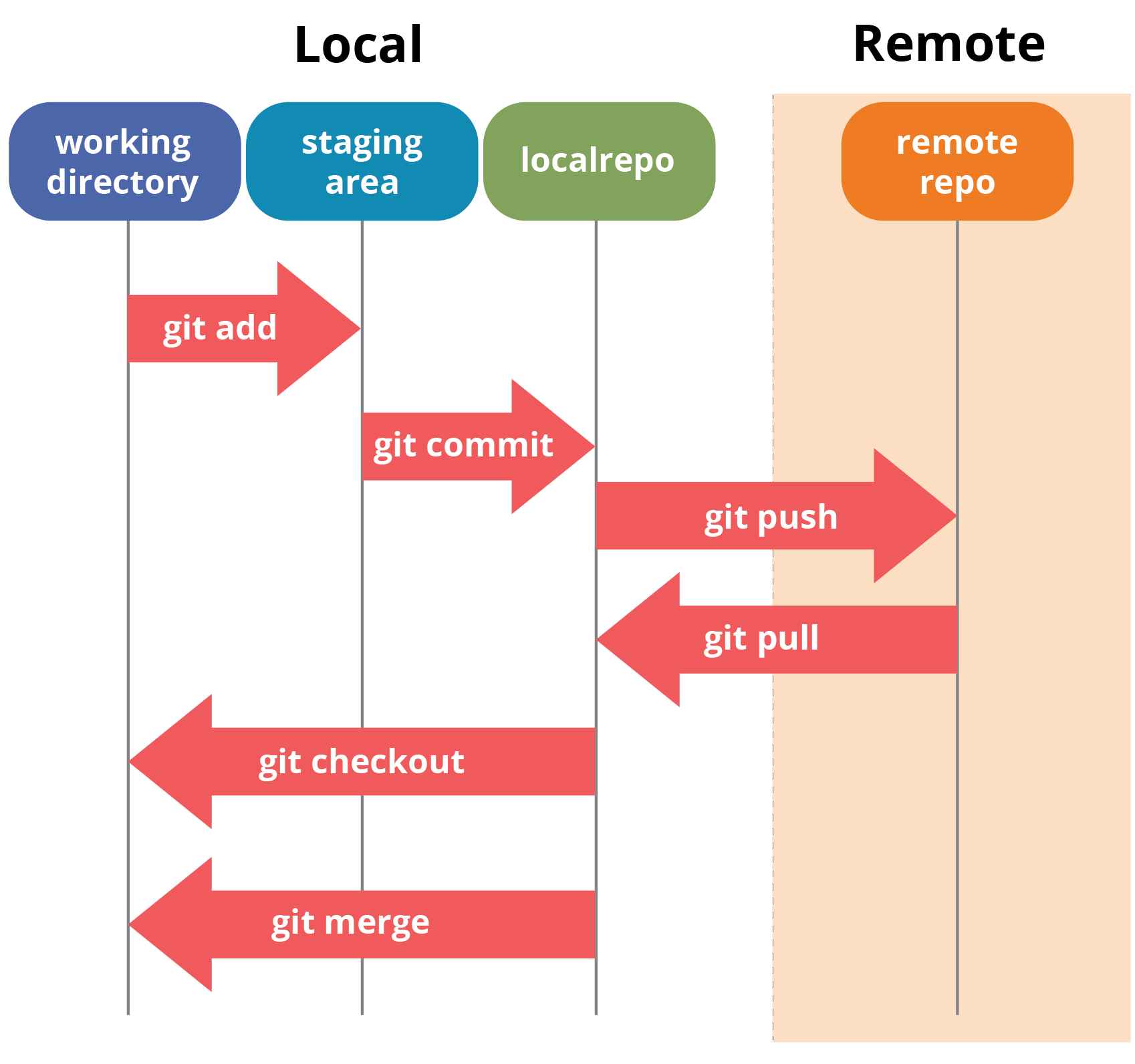
A brief idea about how these operations work with the Git repositories. Take a look at the architecture of Git below:

Git Architechture - Git Tutorial - Edureka
Source: Edureka website

Initialize
In order to do that, we use the command git init. Please refer to the below screenshot.
# git init

Git status
The git status command lists all the modified files which are ready to be added to the local repository.
# git status

Add
This command updates the index using the current content found in the working tree and then prepares the content in the staging area for the next commit.
# git add <dir> or # git add <filename> or # git add -A (to add all files)

Commit
It refers to recording snapshots of the repository at a given time. Committed snapshots will never change unless done explicitly.
# git commit -m “some message”

Set your central repository as origin using the command:
# git remote add origin <link of your central repo>

# git pull origin master
This command will copy all the files from the master branch of remote repository to your local repository.
# git pull origin <branch name>

# git push <remote repo>
Note : This remote refers to the remote repository which had been set before using the pull command.

Branching
Branches in Git are nothing but pointers to a specific commit. Git generally prefers to keep its branches as lightweight as possible.
There are basically two types of branches viz. local branches and remote tracking branches.
To create branch
# git branch <branch name>
To switch branch:
# git checkout <branch name>

Merging
Merging is the way to combine the work of different branches together. This will allow us to branch off, develop a new feature, and then combine it back in.
# git merge <destination branch name>

It is important to know that the branch name in the above command should be the branch you want to merge into the branch you are currently checking out. So, make sure that you are checked out in the destination branch.

Rebasing
This is also a way of combining the work between different branches. Rebasing takes a set of commits, copies them and stores them outside your repository.

The advantage of rebasing is that it can be used to make linear sequence of commits. The commit log or history of the repository stays clean if rebasing is done.
# git rebase master

Few other commands:
To view commit logs
# git log

To configure profile:
# git config –global user.email “avishekbehera87@gmail.com”
# git config –global user.name”avishek behera”

Sources:
https://www.howtogeek.com/180167/htg-explains-what-is-github-and-what-do-geeks-use-it-for/
https://www.edureka.co/blog/git-tutorial/

Posted in Automation Testing

BDD: Cucumber / Gherkin – Preventing feature file proliferation

GENERIC GHERKIN SCENARIO

Feature: App log in

Scenario: User can log in with valid credentials
Given the user is on the log in screen
When the user attempts to log in with valid credentials
Then the user can log in

Note that there’s no detail in here about hard coded credentials, which fields credentials should go in or which buttons should get tapped etc . It’s a behavioural test and currently holds true for all our apps where there is a log facility.

Step definitions for App1

step(“the user is on the log in screen”) {
Launch app
Assert user is on log in screen
}

step(“the user attempts to log in with valid credentials”) {
Fill in these fields to log into App1
Tap login button
}

step(“the user can log in”) {
Assert user is now on correct post login landing page
}

Step definitions for App2

step(“the user is on the log in screen”) {
Launch app
Assert user is on log in screen
}

step(“the user attempts to log in with valid credentials”) {
Fill a whole set of different fields to log into App2
Tap login button
}

step(“the user can log in”) {
Assert user is now on correct post login landing page
}

  1. Gherkin is fine as it helps understand the user story and adds acceptance criteria.
    The definition of acceptance criteria through gherkin is a key feature. Otherwise it is hard to track test coverage and test ability. Especially in Agile Teams Gherkin and BDD is helpful as User Story’s tend to have too much room for interpretation.
  2. You could use Scenario Outlines to define the Test Environments to handle duplicated Scenarios.
  3. Write one Test for login with a paramterized target environment.
    Data driven parts (data tables) or scenario outlines are the only way to handle this in Gherkin itself.

Reference: https://club.ministryoftesting.com/t/cucumber-gherkin-preventing-feature-file-proliferation/23596/4
