Posted in Java

Extract part of a String using Java Substring

While working with java, we sometimes feel the need to extract some characters or part of a String to be able to use it for another logic.

Here is an example where we will need the value of a field called “id” to be extracted from a URL to be passed in another API request.

String urlText="https://google.com/authorize?redirect_uri=https://facebook.com&id=hdhfdfhdjfhdfhui9494&scope=test%test";

String id=mainString.substring(mainString.indexOf("&id")+4,
          mainString.indexOf("&scope"));
System.out.println(id);

Output:
hdhfdfhdjfhdfhui9494

Posted in Automation Testing

TestNG: Retry mechanism

Every time tests fail in a suite, TestNG creates a file called testng-failed.xml in the output directory. This XML file contains the necessary information to rerun only these methods that failed, allowing you to quickly reproduce the failures without having to run the entirety of your tests.

Sometimes, you might want TestNG to automatically retry a test whenever it fails. In those situations, you can use a retry analyzer. When you bind a retry analyzer to a test, TestNG automatically invokes the retry analyzer to determine if TestNG can retry a test case again in an attempt to see if the test that just fails now passes. Here is how you use a retry analyzer:

  • Build an implementation of the interface org.testng.IRetryAnalyzer
  • Bind this implementation to the @Test annotation for e.g., @Test(retryAnalyzer = LocalRetry.class)
import org.testng.IRetryAnalyzer;
import org.testng.ITestResult;
 
public class MyRetry implements IRetryAnalyzer {
 
  private int retryCount = 0;
  private static final int maxRetryCount = 3;
 
  @Override
  public boolean retry(ITestResult result) {
    if (retryCount < maxRetryCount) {
      retryCount++;
      return true;
    }
    return false;
  }
}
import org.testng.Assert;
import org.testng.annotations.Test;
 
public class TestclassSample {
 
  @Test(retryAnalyzer = MyRetry.class)
  public void test2() {
    Assert.fail();
  }
}
Posted in Automation Testing

TestNG: invocation count and threadCount

We might need to run a particular test for multiple times for retesting and also leverage parallel test with Test method.
It can also be used to load test.

//invocationCount: repeats the test for the specified numbers of time
// threadPoolSize : Will run in multiple thread pool for parallel test or
//Load test

	@Test(invocationCount = 3, threadPoolSize = 2, timeOut = 10000)
	public static void Test1() {
		System.out.println("I am in Test1 and this is invocation test. Thread Id:" + Thread.currentThread().getId()
				+ " Current Time:" + LocalTime.now());
	}

Posted in Automation Testing

Apache POI-Java: Excel utility tricks

  1. Passing empty string in a cell
    Sometimes we feel the need of passing null/blank value in excel to avoid the null pointer exception and we can handle this from excel sheet without having to handle from code.
    – If you want to pass empty string just type opening single quote ( ‘ ) and it will be treated as empty string for apache poi
  2. Passing number as string
    If you want to pass number or decimal as string , prefix with opening single quote ( ‘ ) and it will take it as string value.
    Ex: ‘20.00 , ’29
  3. Treating a null cell as blank
    We can make use of Row policy to treat a cell as blank.

Posted in Automation Testing

javascript: Useful commands

  1. Check npm help
    npm help <term>
  2. Check npm version
    npm -v
  3. List all packages installed Globally
    npm -g list
  4. List all packages installed for user
    npm list
  5. Check for the specific package Globally
    npm list -g grunt
  6. Check for the specific package for user
    npm list grunt
  7. Check versions of all installed modules without dependencies
    npm list –depth=0 (for locally)
    npm list -g –depth=0 (globally)
  8. Install a package globally
    npm install -g chromedriver (Remove -g to install locally)
  9. Update all packages in current folder
    npm update
  10. To see which global packages need to be updated globally
    npm outdated -g –depth=0
  11. update a particular package
    npm update -g
Posted in Automation Testing

Selenium IDE: A quick and handy tool to get started with test automation

Reference:
https://applitools.com/blog/why-selenium-ide-2019/

Please visit this awesome tutorial on Selenium IDE.

How to run selenium IDE scripts in command line:

1- Make sure npm is installed

  • To check npm
    npm -g -v (if installed it will show the version)
  • To install it , download it from internet and install as executable in windows

2- Make sure below node dependencies are installed, if not install

  • To check for selenium-side-runner
    npm list -g selenium-side-runner
  • To install
    npm install -g selenium-side-runner
  • To check for chromedriver
    npm list -g chromedriver
  • To install
    npm list -g chromedriver

3- Download the chromedriver exe matching to the version of the chrome browser installed in system. and place it in a folder of your choice

4- Set path to the chromedriver exe
set path=%path%;C:UsersusernameseleniumFolder

5- Once done run below command
selenium-side-runner /path/to/your-project.side


Posted in Automation Testing

Selenium: Run test in headless mode

Many a times we feel the need to run our UI automation tests in headless mode ( No browser visible) .
Few advantages are:

  1. Faster execution, as it does not use system resource(memory and gpu) to launch browser .
  2. When we do not need to bother about browser view and do not want any distraction while running tests. (Working in local machine)

Code:

ChromeOptions options= new ChromeOptions();
//Based on your screen resolution
options.addArguments(“window-size=1400,800”); 
options.addArguments("--headless");
options.addArguments("--disable-gpu");
WebDriver driver =  new ChromeDriver(options);
driver.get("https://testapplicationurl.com");

You can also take screenshots in headless mode.

Posted in Automation Testing

Karate[Visual studio code]: Setting up karate

Official link:
https://github.com/intuit/karate

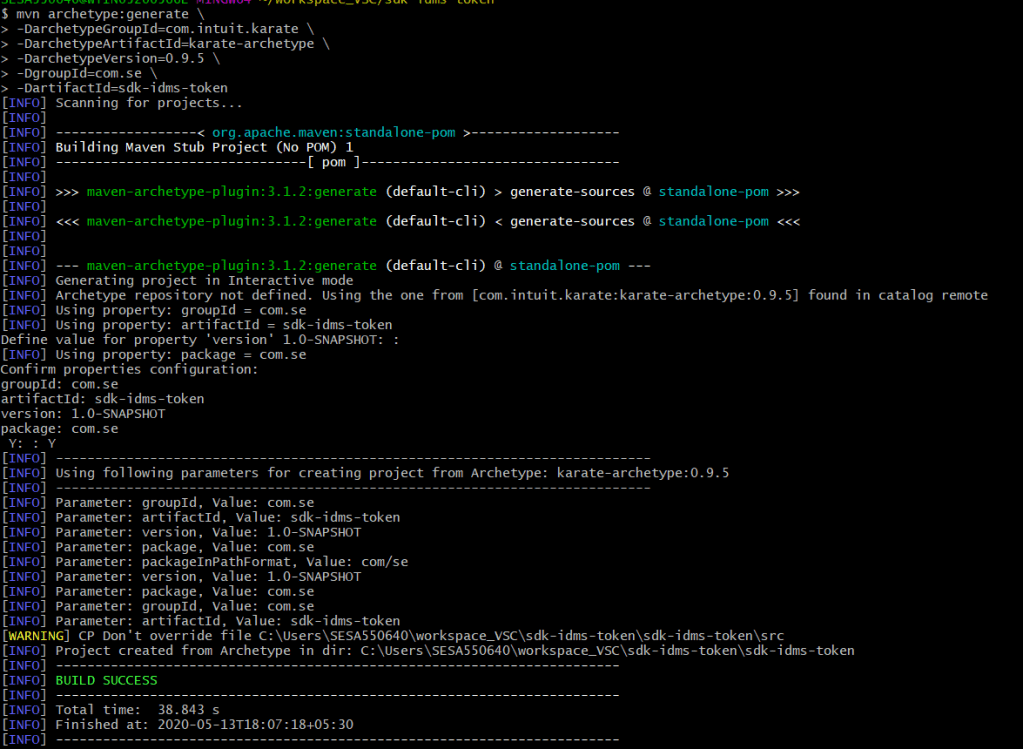
Step1: Setup using maven:
Note: Depending on the command line tool you use, you need to format the below command.
In the below example I am using GIT Bash, it accepts the multi line command as below.
If you are using windows cmd or other editor which do not support multi line, just remove backslash () and format all the steps in one single line command.

mvn archetype:generate 
-DarchetypeGroupId=com.intuit.karate 
-DarchetypeArtifactId=karate-archetype 
-DarchetypeVersion=0.9.5 
-DgroupId=com.yourcompanyname 
-DartifactId=myprojectname
Tool: Git bash

Step2: Import the project in VS Code
– Open VS Code and right click in workspace- add folder to workspace
– This will import the java project

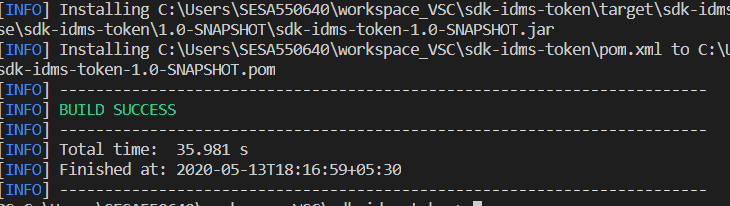
Step3: Run maven install
– Go to terminal and navigate to the newly imported folder in vs code

mvn clean install -U

– This will install all dependencies
– Also it will run default tests which comes as part of the project
– You should see build success.

Step4: Run using Maven

mvn test

Alternatively Use ZIP Release of Karate in VS Code:

Credit: Kalimoh channel


Reference:
https://github.com/intuit/karate/wiki/IDE-Support

https://automationpanda.com/2018/12/10/testing-web-services-with-karate/

https://semaphoreci.com/community/tutorials/testing-a-java-spring-boot-rest-api-with-karate

https://medium.com/@tariqul.islam.rony/learning-java-and-spring-boot-with-visual-studio-code-vscode-part-1-54073f2fa264

https://github.com/Microsoft/vscode-java-test/issues/470

Posted in Automation Testing

Rest Assured: Multipart file upload

When sending larger amount of data to the server it’s common to use the multipart form data technique. Rest Assured provide methods called multiPart that allows you to specify a file, byte-array, input stream or text to upload. In its simplest form you can upload a file like this:

Option 1: File (.json , .txt) without control name (Default control name: file)

given().
        multiPart(new File("/path/to/file")).
when().
        post("/upload");

Option 2: File (.json , .txt) with Control name

given().
        multiPart("controlName", new File("/path/to/file")).
when().
        post("/upload");

Option 3: File (.pdf) with Control name

given().
      multiPart("controlName", new File("/path/to/file"),"application/pdf").
when().
        post("/upload");

Option 4 : json object with Control name

given().
        multiPart("controlName", jsonObject,"application/json").
when().
        post("/upload");

Option 5 : PDF file + json object with Control name

given().
      multiPart("controlName", new File("/path/to/file"),"application/pdf").
      multiPart("controlName", jsonObject,"application/json").
when().
        post("/upload");
Posted in Automation Testing

API: Serialization using Builder pattern POJO ( lombok) in rest assured

References:
http://executeautomation.com/blog/contract-api-testing-with-builder-pattern-using-lombok/

https://medium.com/@hudsonmendes/immutable-the-builder-pattern-vs-messy-pojos-or-pocos-e6b5be894a9d

https://medium.com/@ajinkyabadve/builder-design-patterns-in-java-1ffb12648850

Ignoring NULL (optional field) while making POJO:

Option 1 : (Recommended) To add in class level
@JsonInclude(JsonInclude.Include.NON_NULL)
* This is best suitable while using Lombok and builder pattern

Option 2 : To add in Getter level
@JsonInclude(Include.NON_NULL)
* This is only suitable while using without lombok and only with builder pattern

Error: Lombok 1.18.12 does not compile well with maven compiler 3.8.1.
So downgrade lombok to 1.16.6

Note: This lombok feature is now already available java 14 as built -in feature