Posted in Others

Apache POI : Read excel

Maven Dependencies:
1- poi-ooxml 4.1.2
2- commons-compress 1.20
Note: ooxml comes with commons-compress 1.19, but it has compatibility issues, throws an error. So add it explicitly to 1.20


import java.io.File;
import java.io.FileInputStream;
import java.io.IOException;
import java.util.Arrays;

import org.apache.poi.xssf.usermodel.XSSFSheet;
import org.apache.poi.xssf.usermodel.XSSFWorkbook;

public class excelReader{

//Option 1: Creating path of file
String stringPath="./src/main/java/com/test/TestData.xlsx";

//Option2: Using FileInputStream
File file = new File("./src/main/java/com/test/TestData.xlsx");
		FileInputStream fisPath = new FileInputStream(file);
		
//It takes either String path or InputStream path
// inputStream requires more memory than File so ideal way to user File path
		XSSFWorkbook workbook = new XSSFWorkbook(stringPath);
		
		//Optiona 1:Get Sheet by Name
		XSSFSheet sheet = workbook.getSheet("Sheet1");
		
		//Option 2 : get sheet by index
		XSSFSheet sheet2 = workbook.getSheetAt(0);
		
		//Option1: by getting last row num
		int rowCount = sheet.getLastRowNum();
		
		//Option 2: By getting actual row number
		int rowCount2 = sheet.getPhysicalNumberOfRows();
		
		System.out.println("Total Rows option1: "+rowCount);
		System.out.println("Total Rows option2: "+rowCount2);
		
		int totalColumns = sheet.getRow(0).getPhysicalNumberOfCells();
		int totalColumns2 = sheet.getRow(0).getLastCellNum();
		
		System.out.println("Total Columns option1: "+totalColumns);
		System.out.println("Total Columns option2: "+totalColumns2);
		
		// Read data from excel and store the same in the Object Array.
		Object obj[][] = new Object[rowCount][totalColumns];
		for (int i = 0, j = 0; i < totalRows; i++) {
			while (j < totalColums) {
				sheet.getRow(i + 1).getCell(j, Row.MissingCellPolicy.CREATE_NULL_AS_BLANK).setCellType(CellType.STRING);
				obj[i][j] = sheet.getRow(i + 1).getCell(j).toString()
						.trim();
                                System.out.println(obj[i][j]);
				j++;
			}
			j = 0;
		}
		//To print 2D array
		System.out.println("Excel Data : "+Arrays.deepToString(obj));
				
		//Closing Workbook is a good practice to avoid file corruption and memory optimization
		workbook.close();

}

Posted in Automation Testing

Rest assured : Bypassing SSL certificate

While working with API testing, we encounter SSL certificate error in testing environment.
It results into below error while executing automation script.

sun.security.validator.ValidatorException: PKIX path validation failed: java.security.cert.CertPathValidatorException: signature check failed
javax.net.ssl.SSLHandshakeException

Here is a way to bypass checking for SSL certificate while Rest assured call.
Rest assured has inbuilt option and we do not have to write any other java code to do the same.

Example 1:
RestAssured.baseURI = “http://abcd.com&#8221;;

//ByPass SSL Certificate
RestAssured.useRelaxedHTTPSValidation();

RequestSpecification httpRequest = RestAssured.given();

httpRequest.request(Method.GET, “/resource”);

Example 2:
given(). useRelaxedHTTPSValidation().when().get( “http://abcd.com/ resource ” );

Example 3:
We can also pass TLS with the same approach.
given(). useRelaxedHTTPSValidation(“TLS”).when().get( “http://abcd.com/ resource ” );

Posted in Automation Testing

Validate Regular expression ( RegEx )

Regular expressions are patterns used to match character combinations in strings.

Sometimes while testing we come across character validation scenarios.
Few common cases of regex are:

  • Validating email pattern
  • Validating particular pattern or only few set of character for a field
  • searching for a pattern of string from text result.
  • Restricting some characters to be entered via UI and API as part of security protocols.

We can make use of regex here to allow or restrict characters.
Lets take some simple scenario to understand how this works.

Usecase1:
A text field which allows the users to enter below range of characters only
a to z , A to Z , 0 to 9

Now lets construct regex to allow only these ranges of characters.

1- To start any regex expression we need to start with the char "^"
2 - Now to include the range or pattern we need to enclose it with [] brackets
3- Now for a to z , the pattern will be a-z 
4- for A to Z pattern will be A-Z
5 - For 0 to 9 pattern will be 0-9 or \d
6- Finally our regex will be : ^[a-zA-Z0-9]

To test it, we can use online regex tester website:
regexr.com

You can that the given text matches as per the regex pattern we gave.
But there is a problem here.
If we try to add any character which is not within this allowed range from 2nd char position and in anywhere of the text , it will still be valid.

Notice the characters we added at the end of the text. We still get match but we did not allow it. Then how is it matching?
Because we have specified start of line as ^ but we did not specify if this regex should be applied to all the characters till the end of the text.
So it only checks the 1st char and validates as per the regex.
From the 2nd char on wards whatever you type will be accepted.

How to let it validate for entire string?
We can introduce the end of line character sequence +$

So the updated regex will now be : ^[a-zA-Z0-9]+$
This will now check for the regex for the entire input text.

Now see the result, it has no match.

Now lets see some more interesting use cases.
Usecase2: Allow below ranges

RangeRegex
g to qg-q
F to KF-K
5 to 95-9
dot ( .).
forward slash (/)/
backward slash (\)\\\\
Double quote ( ” )\”
space (space char)
square brackets []\[\]

Out of all the above , square brackets ,backward slash and double quote are the tricky ones as these are escape characters and we need to wrap them with backslash to escape.
Interesting thing to notice here is escaping backward slash requires a bit of technical understanding.

\\ – 1st slash is to escape the 2nd one

\\\ – 1st slash will escape the 2nd one, now it will become \\ and again it will escape the 2nd one. and it will become \

\\\\ – 1st one will escape 2nd and 3rd will escape 4th and we will get \\ finally.
So to get one backward slash after escaping we need four backward slashes.

Now lets construct our full regex:

Start and end characters with enclosing: ^[...here we wil keep all chars based on range]+$
Final regex:
^[g-qF-K5-9./\\\\\" \[\]]+$

And we see it matches with all these range of characters.
Try yourself with some characters out of the given range and see what happens.

I hope this helps you understand the basic , you can study more on complex regex further.
Check this article for more complex regex :
https://www3.ntu.edu.sg/home/ehchua/programming/howto/Regexe.html

Do let us know your feedback.
Learn, Explore , Test , Share …..

Posted in Automation Testing

Javascript Frameworks: Mocha vs Jasmine vs Cucumber vs Serenity/JS

Javascript has been enabling browsers for years. NodeJS brought it to the server side. TypeScript has wrapped familiar object-oriented, statically-typed syntax around it. Anywhere you look, you’ll find Javascript: on the client, server, mobile, and embedded systems.

These are three most common testing frameworks used in JavaScript based automation frameworks.
Jasmine , Mocha , Cucumber , Serenity/JS are very popular.

Common Ground: BDD Tests
– At their core, Mocha and Jasmine both offer Behavior-Driven Design (BDD) tests
– The describe function defines a test suite. The it function implements the BDD method of describing the behavior that a function should exhibit.

Below is the comparison in all these frameworks wrt to features

  • Assertion library:
    • Cucumber JS: Need to be integrated with Cucumber-assert
    • Jasmine: Inbuilt
    • Mocha: Need to be integrated with different assertion libraries : Chai, should.js, expect.js, better-assert
    • Serenity: In-built (Screenplay Pattern)
  • Gerkin language support:
    • Cucumber JS: Inbuilt
    • Jasmine: Need to be integrated with Karma or Cucumber
    • Mocha: Need to be integrated with Mocha-Cakes or mocha-gherkin
    • Serenity: In-built (Serenity BDD)
  • Grouping/tagging of tests:
    • Cucumber JS: Yes
    • Jasmine: Yes
    • Mocha: Yes
    • Serenity: Yes
  • Test runner:
    • Cucumber JS: Command line
    • Jasmine: Command line
    • Mocha: Command line
    • Serenity: In-built
  • Reporting:
    • Cucumber JS: Intuitive reports using cucumber-html-reporter and multiple-cucumber-html-reporter libraries
    • Jasmine: Either cucumber reports can be generated or karma-jasmine-html-reporter or jasmine-pretty-html-reporter can be used, but these reports are less intuitive than Cucumber
    • Mocha: Mocha-simple-html-reporter and mochawesome can be used for reporting. Mochawesome reports are intuitive, just like cucumber reports
    • Serenity: In-Built
  • Documentation/Forums support:
    • Cucumber JS: Good
    • Jasmine: Good
    • Mocha: Good
    • Serenity: Good
  • Rerun of failed tests:
    • Cucumber JS: No inbuilt support for JS version of Cucumber
    • Jasmine: No inbuilt support
    • Mocha: Inbuilt support available
    • Serenity: In-Built
  • Highlight slow tests:
    • Cucumber JS: No support available
    • Jasmine: Can be implemented using jasmine-slow-reporter
    • Mocha: Inbuilt support available
    • Serenity: No
  • Asynchronous testing:
    • Cucumber JS: Easy
    • Jasmine: Difficult
    • Mocha: Easy
    • Serenity: Easy
  • Parallel execution:
    • Cucumber JS: Yes
    • Jasmine: Yes
    • Mocha: Yes
    • Serenity : yes
  • Plug-in support and extensibility:
    • Cucumber JS: Limited
    • Jasmine: Limited
    • Mocha: Good
    • Serenity: Good

Assertion:
– Jasmine has its own assertion library where as Mocha needs Chai library

Chai:
– It has the should style, the expect style, and the assert style

Sinon Fake Server:
– One feature that Sinon has that Jasmine does not is a fake server. This allows you to setup fake responses to AJAX requests made for certain URLs.

Running Tests:
– Mocha comes with a command line utility that you can use to run tests.
– Jasmine however does not have a command line utility to run tests. There are test runners out there for Jasmine, and a very popular one is Karma by the Angular team. Karma also allows support for Mocha if you’d like to run your Mocha tests that way.

Click on the image to view in Full screen

Posted in Automation Testing

Javascript: What is package.json in any node JS project?

This post is taken from LinkedIn
https://www.linkedin.com/posts/dheerajgambhir_what-is-packagejson-in-any-node-js-project-activity-6633741294084681728-PvKu

What is package.json in any node JS project?
package.json is the heart of any Node.js project. Every Node JS project should have this file at the root directory.

This file contains:
• All the packages/modules needed for a Node JS project and their requested versions.
• Several different directives or elements that tell NPM “How to handle the project” like scripts that can be run to automate tasks within the project.
• All the metadata for a project, such as a name, the author, the license, etc.
It makes your build reproducible, and therefore easier to share with other team members.

How we can generate it (package.json)?

  1. Using “npm init”:
    Running this command (‘npm init’) will set up a new NPM package. On initializing, you will be prompted to enter a few answers. Once you answer those and if it worked successfully, you should see a package.json at the root directory.

    Note* The fastest way to initiate a project is using the init command and the -y flag, which answers yes to all the questions:
Command: npm init -y

2. Create on your own: We can manually create a file “package.json” in the root folder of Node Project but make sure it has the same file name and it should have the same case “package” and the same file extension “.json”.

No alternative text description for this image
Posted in Automation Testing

Karate[Eclipse]: Correct way to set up cucumber for karate in eclipse

If you are new to Karate DSL, please follow this link to know about it.

When I started working with Karate framework, I struggled a lot to figure out various things that involves setting up the project, installing plugins, writing various json path , regex for matching etc

While starting I faced few common problems which I want to mention here so that it will save time and get it started quickly without to waste much of time. Even though every details is mentioned in official page, it still lacks few common steps that is not covered.

  • Create a Maven project and add below Dependencies
<dependency>
    <groupId>com.intuit.karate</groupId>
    <artifactId>karate-apache</artifactId>
    <version>0.9.4</version>
    <scope>test</scope>
</dependency>
<dependency>
    <groupId>com.intuit.karate</groupId>
    <artifactId>karate-junit4</artifactId>
    <version>0.9.4</version>
    <scope>test</scope>
</dependency>
  • Now Add cucumber Plugin from Eclipse market place
    This is where the trick is.
    You need to install the correct cucumber plugin here , else it will give errors in feature file syntax.
  • Add the plugin by using the below link from install software option or visit the url and drag and drop install button to eclipse
    https://marketplace.eclipse.org/content/cucumber-eclipse-plugin
    Note: Do not install Natural plugin , it may not work.
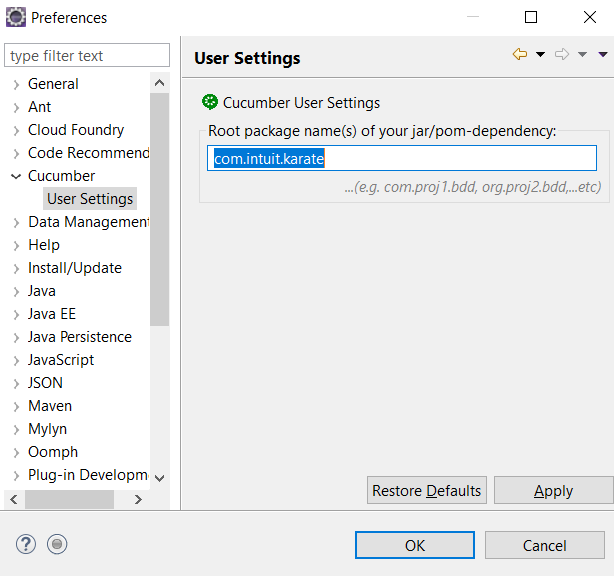
  • After installing make sure to configure the User settings for cucumber in eclipse
    To do so, go to preferences –> Search for user settings in Cucumber option and enter “com.intuit.karate” in root package name.
  • Once this is done, create a feature file and start writing Scenarios .

Note: If you are working under corporate proxy, make sure to add below Proxy configuration in Feature file :
Background:
* configure proxy = ‘http://proxy.com:portnumber/&#8217;

Hope this helps.
Comment your problems .
I will try to answer your queries.

Posted in Others

Karate DSL : Working with json path

If you are new to Karate DSL , Please follow this link to know more.

While I was working with karate, for asserting some values from json response, I encountered an issue with json path.

If you have worked with json path with rest assured or java, typically we use json path with root element and provide expected value as a json object not as array.

But Karate has a strict policy on working with json path.
Example:

response = [{ “Name”:”Avishek”, “id”:”1″}]

To assert the value of Name, we use
response.Name == “Avishek”

However this wont work with Karate. It has to be this way:
response[*].Name == [‘Avishek’]

Karate always returns an array when we use * (wild card).

Posted in Automation Testing

Karate DSL : Handling proxy

If you are new to Karate DSL, please check this official link.
Also check this link for my articles on the same.

when I was working on a script to call an API which was hosted in China region, I was facing some issues while making request in Karate.

I was getting connection time out error.
While the same request was working fine with postman.

I then posted the question in stackoverflow and Peter Thomas (Developer of Karate), responded so quickly and helped me fix my issue.
It was the issue with my Office proxy which was not allowing the request to go through.

Solution:

I just had to add one line of code in Given section as below to fix this:
* configure proxy = ‘http://myofficeproxyurl:80/&#8217;